Character sheet cropper
Split an evenly arranged manhwa character sheet into separate pose, outfit, or expression references. The cropper works locally in your browser: choose the grid that matches the source, inspect every tile, and download only the PNGs you need.
Crop the sheet on this page
Choose a JPG, PNG, or WebP, then match its visible grid. The controls use source-image pixels, and every download is rendered from the original file rather than the smaller on-screen preview.
Your selected file stays in this browser tab. This tool does not upload the image to Anime Maker or send it to an image-generation service.
Crop preview
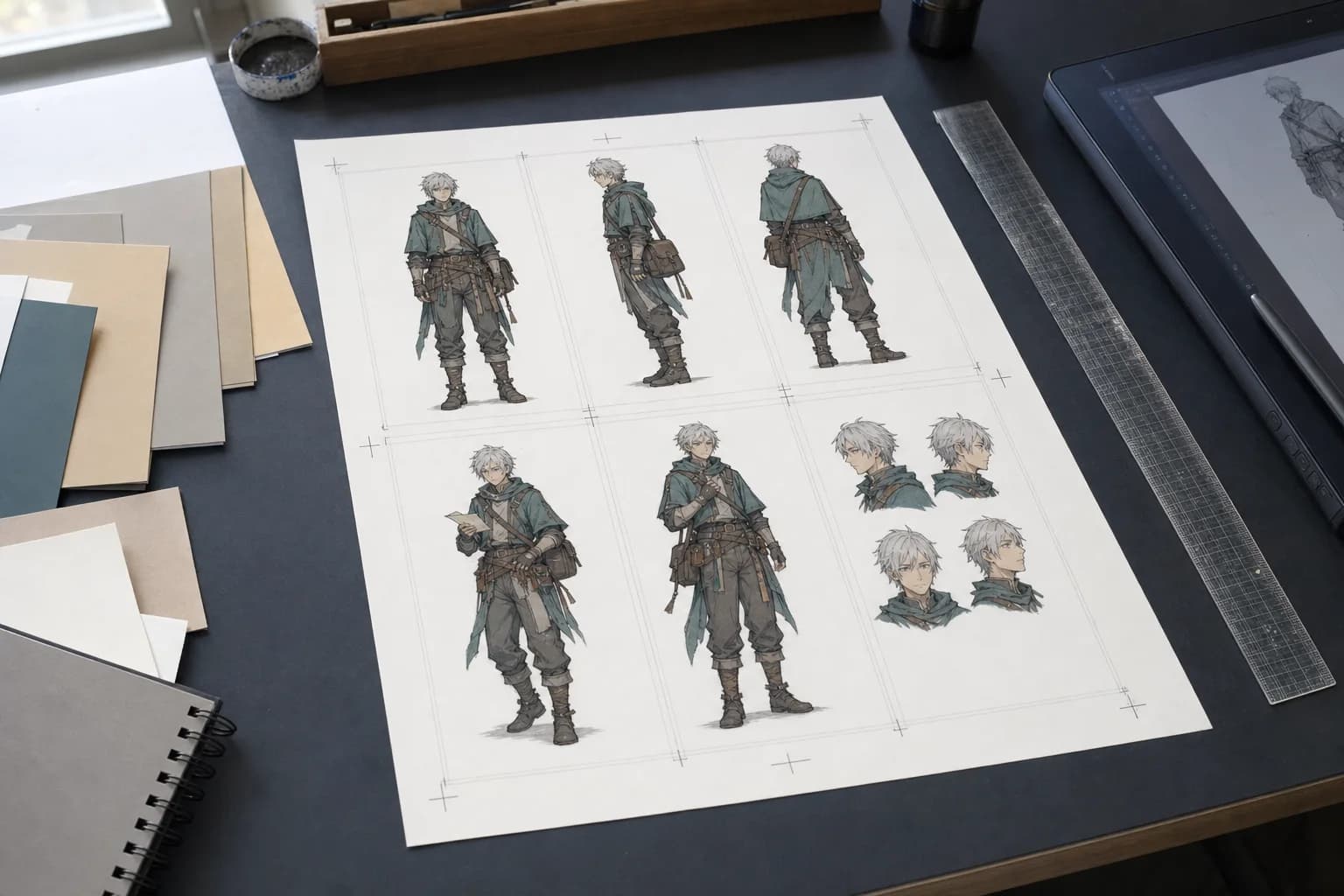
Upload a sheet to replace this example with live crop previews.
Output
Individual full-resolution PNG crops, downloaded one at a time.
Works best with
Sheets arranged in a regular grid with equal outer margins and gaps.
Does not do
AI pose detection, automatic subject masking, background removal, or layered PSD export.
01 — manhwa cropper
A clean result comes from matching the geometry already present in the source. These four steps describe the controls exactly as they work.
Count the visible rows and columns. Check whether the artwork has one uniform border and whether white or colored gutters separate the cells.
Set rows and columns first. Then enter the outside margin and the horizontal and vertical gaps in original-image pixels.
Look for clipped hair, hands, speech balloons, costume details, and neighboring artwork. Change one spacing value at a time until the set aligns.
Download each approved crop as a PNG. Rename the files by character, view, expression, outfit, and version after saving them.
02 — Extract character poses from a sheet
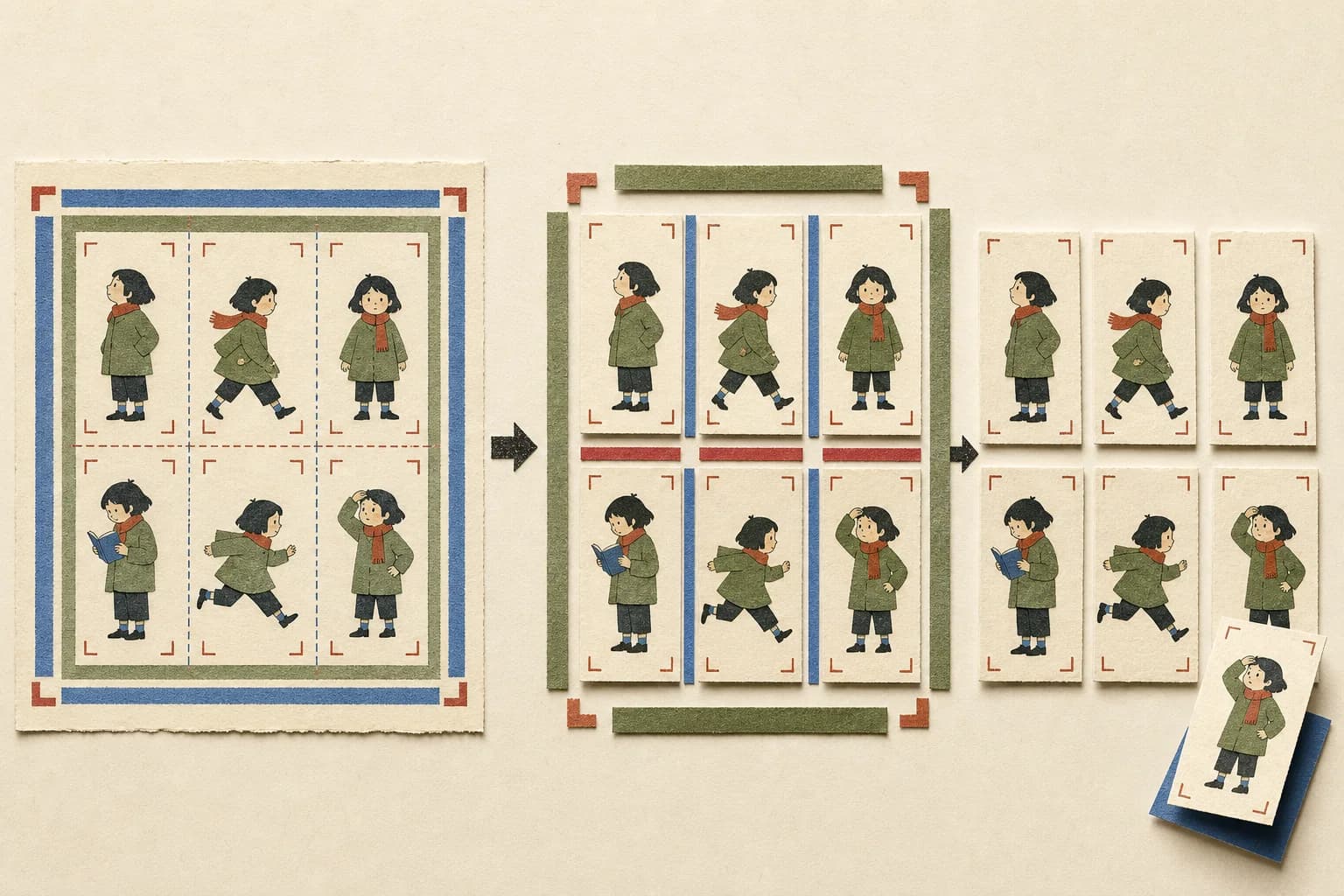
The tool divides a rectangular source into mathematically even cells after subtracting its outer margin and internal gaps. It does not inspect the drawing or decide where a person begins. That deliberate limitation makes the result predictable for well-structured sheets and easy to diagnose when the source is irregular.
The paper-collage example visualizes the same calculation used by the tool: remove the outside border and gutters, then divide the remaining width and height evenly.
03 — A practical guide to clean character references
Use the section that matches the sheet in front of you. The advice covers source preparation, spacing, expressions, outfits, export, privacy, and the cases where a regular grid crop is the wrong method.
Source audit
A manhwa cropper is most reliable when the source has a repeated layout: two rows of expression studies, three columns of outfit views, or a measured turnaround with the same cell size throughout. Count the cells before touching the controls. Look for a consistent border around the whole page and for gutters that keep one drawing from entering the next cell. If a page mixes one large hero pose with several small head studies, it is not one regular grid. Crop the irregular regions in an editor or divide the page into separate regular blocks first.
Check the original pixel dimensions, not just the size displayed by a website. A 2400-pixel-wide sheet can contain a 120-pixel outside border that looks small on a laptop. The controls on this page use those original pixels. If the image came from a scan, straighten it before cropping. A tilted page creates cells that are rectangular while the art and printed grid are not. Also remove scanner lids, page shadows, or neighboring pages if they are not part of the reference you want to preserve.
Use only images you created, licensed, or are allowed to process. Cropping does not change the ownership of a character sheet, erase a watermark, or grant permission to train, publish, sell, or redistribute the artwork. If you are organizing references for a team, retain the source link, creator credit, license, project, and date beside the exported files. A neat folder without provenance becomes difficult to audit later, even when every crop was made for a legitimate production purpose.
Grid measurement
Rows and columns describe how many equal cells the tool should create. Outer margin removes the same number of pixels from all four sides. Horizontal gap removes space between columns; vertical gap removes space between rows. After those areas are removed, the remaining width and height are divided evenly. This is why the tool can handle a six-cell sheet with generous gutters, but cannot independently set a different top, right, bottom, or left margin. When borders differ, crop the page to a balanced rectangle before bringing it here.
Start with rows and columns and leave every spacing value at zero. If each preview includes part of the page border, increase the outer margin. If each crop contains half of a gutter on both sides, add the horizontal or vertical gap. Make changes in small steps, especially with a low-resolution image. A ten-pixel adjustment can be inconsequential on a 6000-pixel scan and destructive on a 400-pixel reference. The first crop’s pixel size appears above the previews so you can see the cost of every border and gap change.
Rounding is unavoidable when the usable width does not divide perfectly by the number of columns. The cropper rounds cell boundaries rather than shrinking every cell to a guessed fixed size. Adjacent boundaries still meet without intentional overlap, while neighboring tiles may differ by a pixel. This is normally preferable to leaving an unexplained strip at the far edge. If a production pipeline requires exactly identical dimensions, prepare a source whose usable width and height divide evenly or pad the exported tiles afterward.
Pose references
Full-body pose cells need more breathing room than facial studies. Inspect the head, hair tips, fingertips, garment hems, weapons, bags, capes, and feet in every preview. A figure may appear centered while an accessory crosses the nominal cell boundary. Do not solve that by increasing the same margin around the entire sheet; that usually removes even more edge information. Return to the source and decide whether the crossing element belongs to one cell, whether the gutters are truly equal, or whether that particular pose needs a manual crop.
A clean pose reference should retain the visual information another artist actually needs: ground contact, center of gravity, limb overlap, costume construction, held objects, and the silhouette at its widest point. Decorative captions or neighboring thumbnails may be expendable, but do not crop away shoes just to make the figure look larger. When references will guide animation or model sheets, keep a little consistent space above and below the character. Consistent framing makes pose comparison faster and reduces accidental scale changes.
The tool does not isolate a person from the background. A PNG download preserves whatever pixels are inside the cell, including paper color, texture, shadows, grid lines, and transparency already present in the source. If you need a transparent cutout, make and inspect a mask in an editor after cropping. Hair, translucent fabric, motion blur, soft shadows, and antialiased ink all deserve manual edge review; a crop boundary and a subject boundary are different problems.
Expression and outfit sets
Expression sheets often place several heads in a tight grid. Preserve the full hair shape, ears, neck, and any recurring accessories, not only the facial features. A crop that ends at the chin can hide how the head connects to the costume or how a scarf behaves across emotions. If speech notes sit between rows, decide whether those notes are useful production context. This regular-grid tool cannot attach a different note area to each crop, so keep a full source copy beside the separated faces.
Outfit sheets benefit from stable framing across front, side, back, and three-quarter views. Downloaded cells can be compared side by side only when the character scale and ground line remain consistent. If one view includes fabric swatches or construction callouts, avoid trimming them automatically unless the reference has been designed so those callouts stay within the same cell. Create file names such as courier-outfit-a-front-v03.png rather than crop-01.png once the images leave the browser.
For manhwa production, separated references can reduce scrolling while drawing dialogue scenes, but they should not replace the master sheet. Keep a read-only source that shows relationships between views, approved color swatches, height comparisons, and annotations. The crops are working references optimized for quick access. The sheet remains the authoritative context. This distinction prevents an isolated expression from being reused with the wrong costume version or a redesign from silently replacing the approved model.
Quality review
The preview canvas is scaled by the page layout so many crops can be scanned together. The exported PNG is rendered again from the original image at the calculated source dimensions. This means a preview may look small without the download being low resolution. Use the displayed crop size to judge whether there are enough pixels for your purpose, and open one downloaded sample at 100 percent before processing the whole set.
Check all tiles, not only the first one. A sheet can look regular until a long ponytail, sword, coat, or caption crosses one gutter. Look for repeated one-pixel lines at edges, partial neighboring faces, uneven paper borders, and accidental truncation. If every crop is offset in the same direction, the outside border or source crop is wrong. If only one row is wrong, the vertical spacing is probably not uniform. If only one illustration fails, the source is irregular and needs a manual exception.
Avoid repeatedly saving and recropping compressed JPEGs. Start from the highest-quality authorized source and export PNG once. PNG does not restore detail already lost to heavy JPEG compression, but it avoids adding another lossy encoding step. Large source files create large canvases during download; on memory-constrained mobile browsers, process fewer cells or use a desktop browser if a download fails. The page does not store a recovery copy after the tab closes.
Export and organization
Each button creates one PNG in the browser and asks the browser to download it. Files are numbered in reading order from left to right, then top to bottom. Browser download policies vary, so individual buttons are more dependable than silently opening many downloads at once. After saving, inspect the image dimensions and transparency in the editor or file viewer used by your team. Do not assume an operating-system thumbnail shows the complete edge.
Rename files while the content is still obvious. Useful components are project, character, category, view or emotion, costume version, and revision. Keep names short enough for tools and source control, but specific enough that another person can select the correct reference without opening ten files. Store the untouched source, a small text record of rows, columns, margin and gaps, and the exported set together. Those settings make the crop reproducible if a file is replaced or a missing tile is needed later.
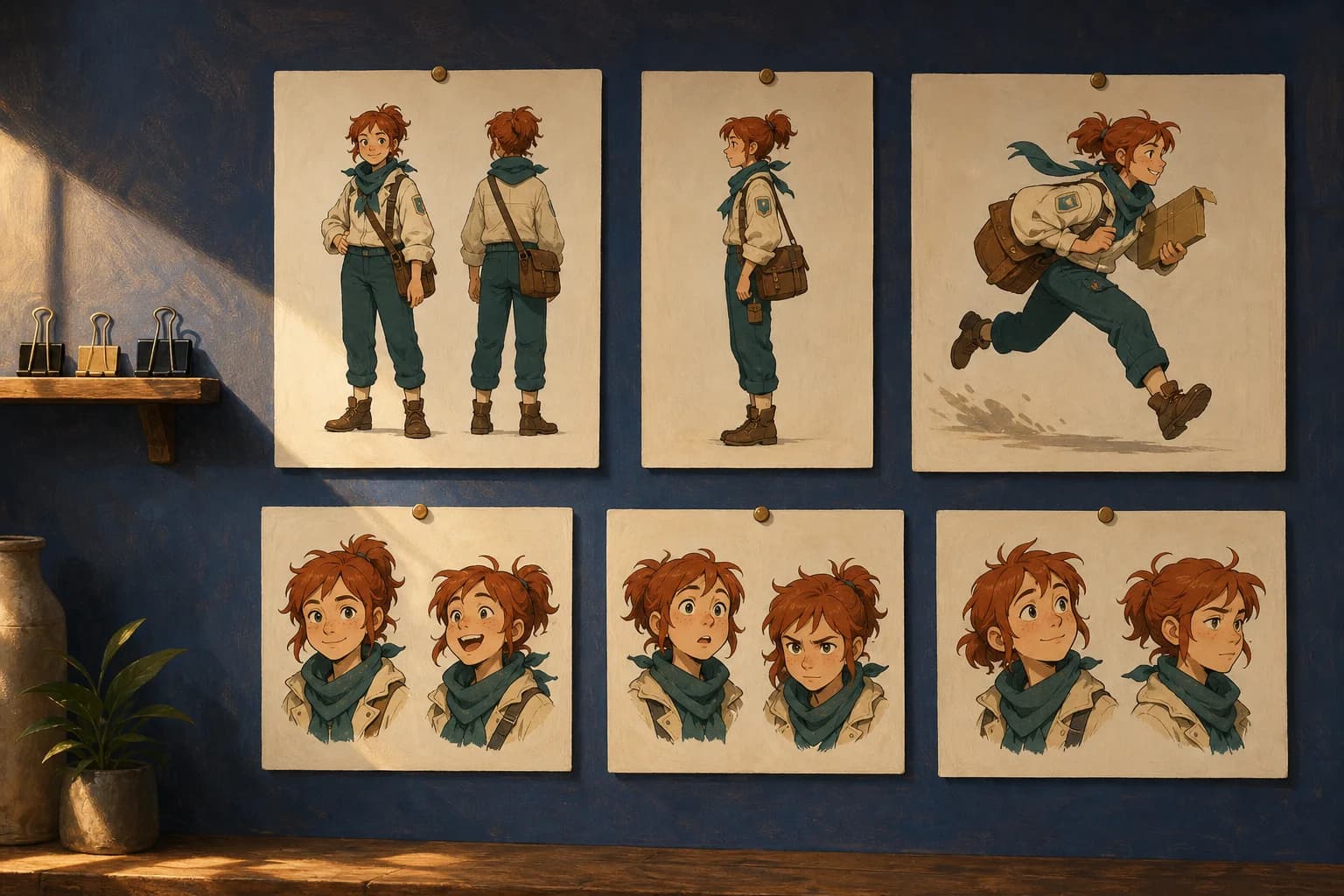
The finished reference board shown on this page represents organization, not an automated feature. The browser tool supplies rectangular PNG files; it does not pin them to a board, tag expressions, recognize a front view, rename content, or synchronize a library. Those are human editorial decisions. Keeping that boundary clear matters because a technically correct crop can still be mislabeled, attached to the wrong character, or kept after an art director has approved a newer sheet.
Privacy and compatibility
The file input creates a temporary object URL in the current browser tab. The page reads the image dimensions and uses browser canvas APIs to draw previews and PNG downloads. The image is not posted to Anime Maker’s generation endpoint by this component. Removing the image or leaving the page releases the page’s reference to the temporary URL, although the PNGs you explicitly download remain in your normal downloads folder.
Local processing avoids an unnecessary upload, but it does not make the surrounding device universally private. Other browser extensions, shared accounts, operating-system backups, managed-device policies, and downloaded-file synchronization are outside this page’s control. Treat sensitive production sheets according to your organization’s device and storage rules. If the browser tab is reloaded, the selected local file and settings are not restored; the page intentionally does not build a server-side gallery of user crops.
Modern browsers that support File, object URLs, canvas drawImage, and canvas-toBlob should handle ordinary JPG, PNG, and WebP sources. Very large images can exceed a browser’s canvas or memory limits, particularly on mobile devices. Embedded color profiles, unusual EXIF orientation, animated WebP, or damaged files may render differently between browsers. When color or exact print dimensions are critical, compare the downloaded crop with the source in a color-managed desktop editor.
When not to use it
Use an editor with adjustable crop boxes when cells have different widths, when the page combines large and small drawings, when figures overlap gutters, or when each pose needs a unique amount of padding. This tool deliberately offers one outer margin and two uniform gap values. Adding dozens of exception controls would make a regular grid slower to set up while still falling short of a real editor. A simple tool is useful when its limits are visible.
Use a background-removal or masking workflow when the job is subject extraction rather than rectangular slicing. Use optical character recognition when the goal is separating or translating written annotations. Use a sprite-sheet tool when you also need animation timing, pivots, atlas metadata, or engine import files. Use a layout application when you need printable contact sheets. These are adjacent tasks, not hidden abilities of a manhwa cropper.
A successful crop is easy to define: every chosen PNG contains the intended reference at useful resolution, no required detail is cut away, neighboring cells are absent, the master sheet and rights information remain available, and file names communicate what the image contains. If the regular grid reaches that result, the browser tool has done its job. If it does not, move to a manual method instead of forcing the source to fit the controls.
04 — Continue the character workflow
No. This component reads the selected file in the browser and draws the crops with canvas. It does not send the image to Anime Maker or an image-generation provider. Downloaded files follow your browser and device settings.
No. Enter the regular row and column layout yourself. The tool performs predictable rectangular slicing; it does not run AI detection, semantic segmentation, background removal, or face recognition.
Outer margin removes the same number of source pixels from every edge. Horizontal gap removes space between columns, and vertical gap removes space between rows. The remaining area is divided evenly.
Yes. Each PNG is drawn from the original loaded image using the calculated source rectangle. The browser scales the on-page preview for display, but that preview size does not set the downloaded resolution.
The source may have an outer border or gutter that is not yet reflected in the controls, or its cells may not be uniform. Adjust one spacing value at a time. Use manual crops if only some cells differ.
Not on this page. Each crop has its own PNG button so browsers do not need to approve a burst of automatic downloads. A ZIP exporter and file naming interface are not implemented here.
PNG preserves transparency that already exists inside the source crop. It does not remove a paper, color, or scene background. Use a dedicated masking workflow when transparent cutouts are required.
Large source images and many previews consume browser memory. Mobile canvas limits vary. Try fewer rows or columns, use a smaller authorized source copy, or process the original on a desktop browser.
