
01
Prepare an authorized page
Use the highest-quality flat page available, remove browser chrome, and preserve an untouched source copy.
Comic panel splitter
Upload a JPG, PNG, or WebP page you own or may process. Choose rows, columns, and gutter trimming; the browser previews each rectangular cell and downloads separate PNG crops without sending the source to this splitter. It is a deterministic grid cropper, not AI panel detection.
Start with a page whose panels follow a regular rectangular grid. Adjust rows, columns, and internal trim, inspect every preview, then download only the useful crops. Irregular, overlapping, diagonal, or inset panels need manual cropping.
This splitter reads and crops the selected file with browser APIs. The source is not uploaded by this component.
Choose a regular rectangular comic page to preview its individual cells.
JPG · PNG · WebP
source formats accepted by this local browser tool
1–6 × 1–6
deterministic rectangular cells from the chosen row and column count
PNG files
individual full-resolution crops; no ZIP, OCR, or automatic reading-order model
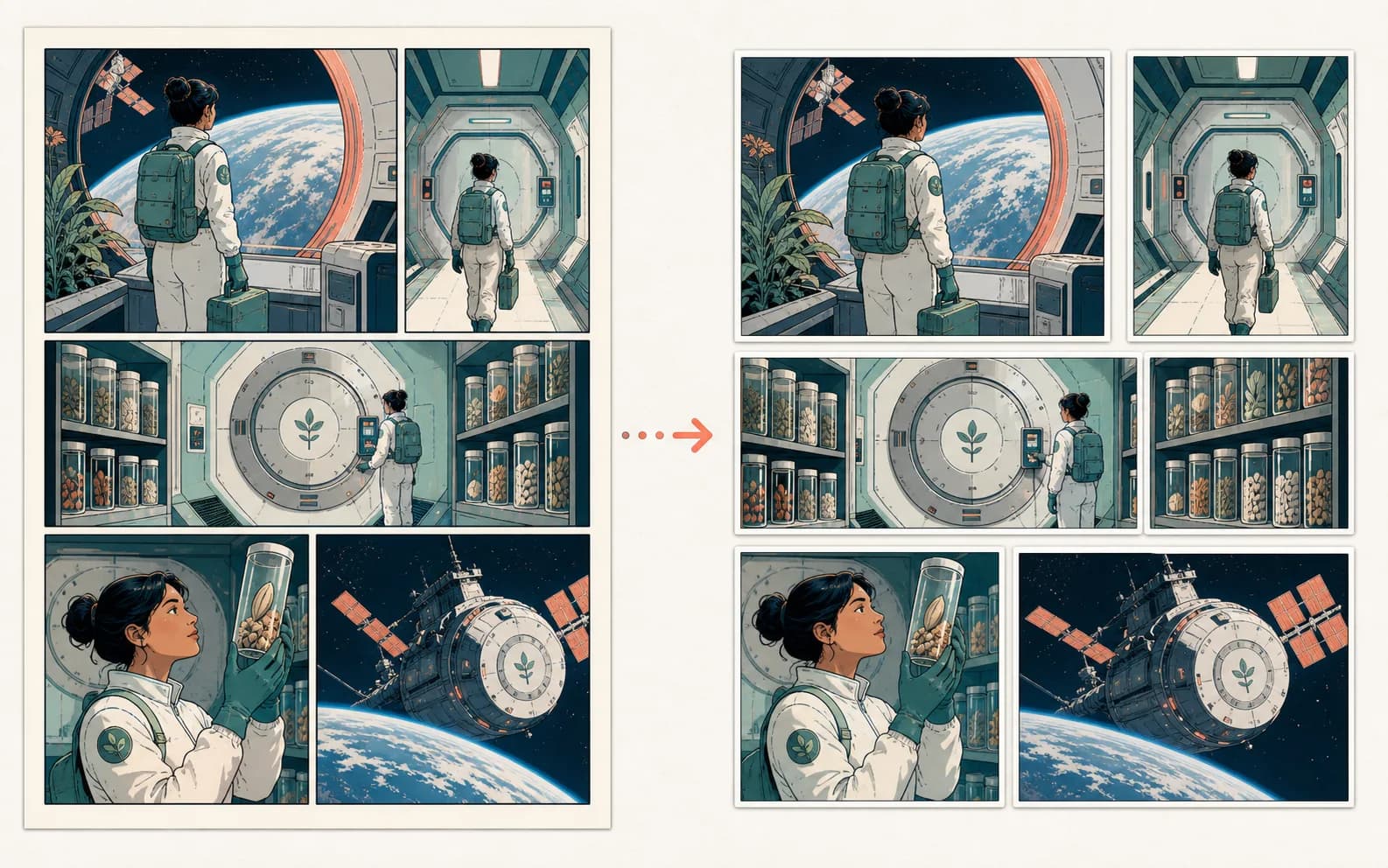
This original before-and-after illustration makes the operation explicit: a regular page becomes six rectangular image files in row-major order. Nothing behind gutters is recovered, and irregular panel boundaries are not inferred.
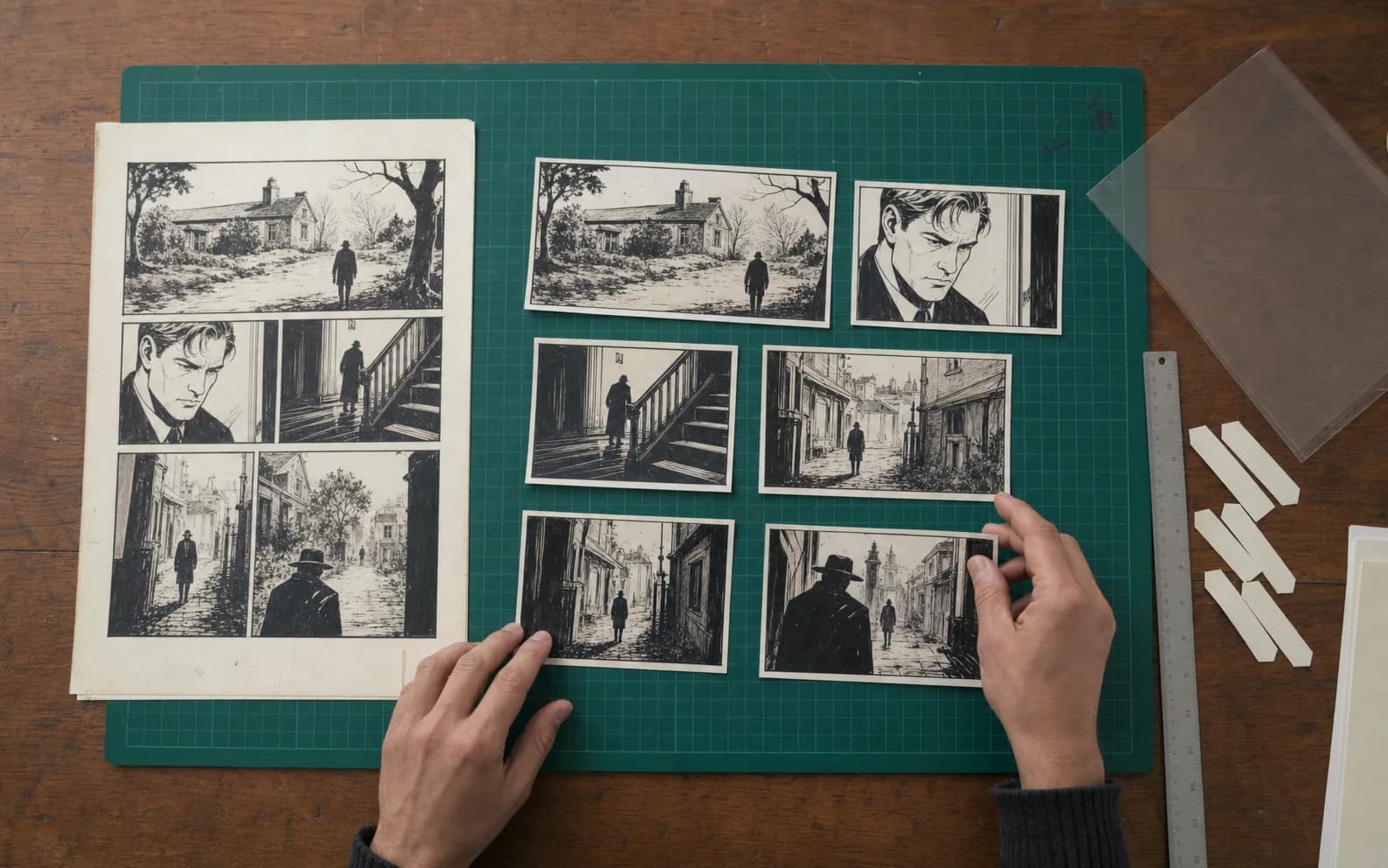
A crop can be technically accurate and still fail editorially if the wrong reading order, shared border, caption, or inset belongs to another panel. The documentary worktable shows the review the browser cannot perform for you.
01
Use the highest-quality flat page available, remove browser chrome, and preserve an untouched source copy.
02
Identify horizontal bands and vertical columns; this tool does not detect diagonal or overlapping panel shapes.
03
Increase internal trim only enough to remove gutter bands without cutting balloons, borders, or artwork.
04
Confirm reading order, edge content, captions, panel numbers, and whether any cell contains more than one panel.
05
Save individual PNGs, rename them to the editorial sequence, and keep source, permissions, and crop notes together.
What it does
This implementation divides the uploaded bitmap into equal rectangular cells using the row and column counts you choose. It then trims a percentage from the internal edges of each cell and draws the remaining source rectangle into a new canvas. The previews and exported PNGs come from browser canvas APIs. There is no machine-learning model, computer-vision contour detector, OCR system, semantic panel labeler, or reading-order classifier in this page. The word “splitter” describes deterministic cropping, not automatic understanding of comic layout.
A regular two-by-three page is a good fit when cell boundaries are roughly aligned. A page with a full-width top panel and two columns below is not one uniform grid, even though every panel is rectangular. Diagonal borders, borderless art, overlapping insets, manga bleeds, speech balloons that cross gutters, and panels nested inside other panels require separate manual crop decisions. You can split a broad region first and crop the resulting files again elsewhere, but this interface does not provide per-panel handles or freeform selections.
The source stays local to this component in the current implementation. File selection creates an object URL, image dimensions are read in the browser, preview canvases are drawn locally, and each download is built locally. That statement applies to this splitter, not to other site tools that may upload references to configured services. Browser extensions, the operating system, or a later modified implementation are outside the page’s claim, so users should still avoid processing confidential material without an appropriate security review.
Source preparation
Use a page you created, licensed, commissioned with suitable rights, or otherwise have permission to process. Cropping does not erase copyright, confidentiality, privacy, or platform restrictions. Keep the original file and any license or approval record. If the page contains identifiable people, unpublished work, or client material, confirm that local browser processing is permitted in the relevant workflow before selecting the file. The tool does not grant publication rights to the source or its crops.
Prefer a high-quality PNG or well-encoded WebP when available. JPEG ringing and block artifacts around ink, screentone, and text will remain in every crop. Correct page rotation, remove device borders and scan-bed shadows, and crop unrelated margins before splitting. Do not aggressively sharpen a low-resolution screenshot; it can make halos and moiré more visible. If the page came from a PDF, render the page at an appropriate resolution with a trusted workflow rather than taking a screen capture at an arbitrary zoom.
The interface accepts JPG, PNG, and WebP files up to 24 MB, 12,000 pixels on either side, and 40 megapixels. These limits reduce browser memory and canvas failures but do not guarantee that every mobile device can process the maximum. A 10,000-pixel page may still exhaust memory when several full-size crops are exported. If the browser fails, make a working copy at a smaller dimension, preserve the original, and perform production crops in a desktop editor with controlled memory and color settings.
Grid measurement
Rows and columns refer to equal divisions of the entire source rectangle. A three-row, two-column setting creates six cells even if one artwork panel spans both columns. Study the actual page structure before choosing numbers. Look for consistent horizontal and vertical gutter centers, not merely the number of narrative panels. When the layout changes width between bands, this simple grid cannot express the page exactly. Use a manual crop tool or split the page into bands first in an external editor.
A useful diagnostic is to imagine straight lines running from one page edge to the opposite edge. If every horizontal division crosses the page at one height and every vertical division crosses it at one width, a grid is plausible. If a line stops at an inset, bends, angles, or crosses artwork, it is not. Borderless panels can still be regular when their intended cells are equal, but the preview must be checked carefully because the splitter has no border signal to validate the decision.
Do not infer reading order from the panel numbers displayed by the tool. Files are ordered row by row, left to right, based on geometry. A right-to-left manga page may need renaming or reordering after export. A page with a tall panel beside several stacked panels can also have a narrative order that differs from rectangular cell order. Preserve the script or editorial page map and rename outputs explicitly rather than letting filenames become an accidental reading-order authority.
Gutter trimming
The gutter trim control removes a percentage of each cell dimension from internal edges. Outer page edges are preserved; only boundaries between neighboring cells are trimmed. This is useful when a uniform white or black gutter belongs to neither panel. It is not an edge detector. A percentage that cleans one boundary can cut artwork on another when gutter widths vary. Begin at zero, increase gradually, and inspect every crop at the largest practical preview size.
Speech balloons, caption boxes, sound effects, limbs, speed lines, and environmental art may cross panel borders intentionally. A mechanical trim can cut them even when the visible gutter looks wide elsewhere. Shared double borders can create a decision about which panel owns the line. There is no universal correct answer: preserve the border when the crop will be archived as a faithful panel, or remove it when the crop will be placed edge-to-edge in a new layout. Record the decision so later editors do not mistake the crop for an untouched source.
Bleed panels deserve extra attention. Art that runs to the page edge may have been designed with trim outside the final visible area, while a digital page may use edge-to-edge art without print bleed. The splitter sees only pixels and does not know the intended trim box. If production accuracy matters, obtain the original layout or printer specification and crop from the editable file. A flattened reader screenshot cannot reveal hidden bleed, safe areas, or the original panel mask.
Preview review
Check each preview for complete faces, hands, tails, captions, sound effects, border corners, and environmental cues. Make sure a panel has not been split in half or combined with a neighbor. Compare the first and last few pixels at every boundary with the source page. A checkerboard indicates transparent padding or source transparency, not missing recovery. The output is a crop of visible pixels; it cannot restore art hidden by gutters, balloons, overlaid panels, or page furniture.
Read the cropped sequence at the intended display size. A crop that looks correct in a desktop grid may become confusing when published individually because the original page layout supplied pacing and orientation. Add page and panel metadata in the publishing system where appropriate. If a panel depends on a preceding inset, shared caption, or visual bridge, consider keeping the pair together or rebuilding the sequence manually rather than forcing every rectangle into an isolated post.
Check color and tone after download in a separate viewer. Canvas export uses the browser’s rendering path and produces PNG files, but color-profile handling can vary across browsers and downstream applications. This tool does not expose profile conversion, bit depth, print color, compression controls, or metadata preservation. For archival, prepress, or color-critical work, crop in an application that supports the required profile and verify the output with the project’s production specification.
Export and naming
Each panel downloads separately as a PNG. The tool does not build a ZIP, contact sheet, PDF, CBZ, layered file, or manifest. Download only after previews are approved and rename the files in the actual reading order. A practical pattern includes project, chapter, page, panel sequence, language, and version, but use the naming standard already adopted by the team. Keep leading zeros so file systems sort numerically. Avoid relying on download timestamps as editorial order.
Preserve the untouched source beside a crop log. Record row count, column count, gutter percentage, source filename, source dimensions, date, operator, and any manual reorder. If a crop is later retouched, distinguish the raw crop from the corrected version. This provenance is useful when a missing speech bubble or clipped border is discovered after publication. Without it, a future editor may not know whether the source, grid, trim, or later adjustment caused the problem.
Before uploading crops to a site or social platform, check maximum dimensions, file-size limits, recompression behavior, transparency support, and reading order. Generate thumbnails from the approved masters rather than treating a platform-compressed download as the new source. Add alt text or transcripts for dialogue-heavy panels. If a platform strips metadata, keep credits and rights records in the project archive and place required attribution in a visible publication field.
Irregular pages
A common comic page combines wide establishing panels, narrow reaction panels, diagonal action cuts, floating insets, borderless bleeds, and artwork that crosses several frames. Equal division cannot describe that layout. Increasing rows and columns may create many fragments, but reassembling them is slower and riskier than drawing manual crop rectangles. Use a raster editor, comic-layout application, or image tool with per-panel handles when each boundary needs its own position.
Automatic panel detection is also not a universal solution. Border-based detectors can fail on borderless art, broken gutters, textured backgrounds, balloons crossing borders, black pages, scan shadows, and nested frames. Semantic models can still choose the wrong reading order or merge decorative boxes with story panels. If another product offers detection, review its visible result rather than assuming “AI” means the crop is editorially correct. This page avoids that ambiguity by exposing the simple grid it actually uses.
For archival extraction from a published comic, the original editable page is preferable. It may contain individual artwork panels, masks, balloons, lettering, bleed, and trim information that a flattened export no longer preserves. Request those sources when permissions and workflow allow. A splitter is most valuable when the only authorized input is a clean regular page and the destination needs straightforward rectangular derivatives.
Quality and rights
Cropping does not make a work original, public domain, anonymous, or cleared for a new context. It can remove credits, copyright notices, signatures, content warnings, or surrounding narrative that made the source understandable. Preserve required attribution and do not use the tool to conceal ownership. When distributing individual panels, confirm that the license covers excerpts and the intended platform. Context can change how an image is interpreted, especially when a single reaction or line is separated from the surrounding page.
Review sensitive content after isolation. A panel that was one brief moment in a page can become the dominant preview, thumbnail, or social post. Add content notices where appropriate and avoid misleading captions. If a crop contains a realistic person or factual claim, preserve context and source information. The tool performs geometry only and cannot assess defamation, privacy, consent, age, medical accuracy, or other publication risk.
Maintain a reversible workflow. Keep the original, raw crops, corrected crops, publication derivatives, permissions, and export notes. If the source is later updated or a crop proves wrong, regenerate from the original rather than enlarging or recompressing a small derivative. Reliable comic production comes from traceable files and human review, not from the number of automation steps.
Practical scenarios
A creator may split a regular page into carousel slides, individual portfolio details, translation review panels, animation reference frames, classroom examples, or content-management assets. In each case, define why the panel needs to stand alone. A social carousel may require a new cover slide and captions; a translation review may need stable panel IDs and transcripts; an animation reference may need a clean crop with extra padding. The splitter provides pixels, while the surrounding workflow provides meaning.
For localization, do not raster-edit translated dialogue directly into the downloaded crop unless that is the approved production method. Keep a clean art crop and rebuild balloons and text in an editable layout. Languages expand differently, reading direction can change, and type requires proper shaping and fonts. This page’s interface is localized, but it does not translate the uploaded artwork, run OCR, remove existing text, or generate new dialogue.
For comic-to-video preparation, choose one crop that has a clear subject, coherent background, and enough room for motion or camera change. A tiny fragmented action cell or a panel dominated by balloons may animate poorly. The comic-to-video page can accept an image reference through the actual video workflow, but it does not know the original page. Save the crop with enough metadata that the motion editor can trace it back to the authorized source and story context.
Rows and columns are equal divisions chosen by the user; the tool does not inspect borders or story structure.
Diagonal, overlapping, nested, borderless, or mixed-width layouts require manual crop rectangles elsewhere.
Each approved full-resolution panel downloads separately as PNG.
Lettering remains part of the pixels; no dialogue is read, removed, translated, or rebuilt.
Files above 24 MB, 12,000 pixels per side, or 40 megapixels are rejected; large valid files may still strain mobile devices.
The tool does not grant permission, remove attribution obligations, or clear excerpts for republication.
Reviewed 2026-07-22 · Anime Maker product and editorial team
Page illustrations are editorial examples, not live account task logs. Judge the tool by the result shown in your own output panel.
No. Choose the number of equal rows and columns yourself. The page performs deterministic rectangular canvas crops and makes no semantic or reading-order inference.
Not by this splitter implementation. It reads the selected file and creates previews and PNG crops with browser APIs. Other site generators have different data flows.
Not accurately when boundaries are diagonal, nested, overlapping, borderless, or different widths. Use a manual crop tool with one rectangle or path per panel.
It removes a percentage from internal cell edges. It does not detect the gutter, so increase it slowly and check every crop for clipped art or lettering.
The local input accepts JPG, PNG, and WebP within the stated size limits. Each crop downloads separately as PNG.
Only if your ownership, license, permissions, context, attribution, and platform rules allow it. Cropping a page does not create new rights.